
How to Clear Browser Cache on Mac (Safari, Chrome, Firefox & Edge)
Modern web apps cache gigabytes of video chunks, WebAssembly bundles and service-worker storage on your Mac SSD. Clearing disk cache frees space and fixes broken page layouts — without signing you out of websites.
2. Where Safari, Chrome & Firefox Store Cache on macOS
Safari’s WebKit network & media cache (protected by macOS Full Disk Access; can also be cleared via Safari › Develop › Empty Caches).
Chrome profile Cache and Code Cache directories — often 3 GB to 15 GB across multiple profiles.
Firefox cache2 storage for each local browser profile.
Microsoft Edge Chromium disk and shader caches.
3. Clear Browser Caches Safely Across All Browsers at Once
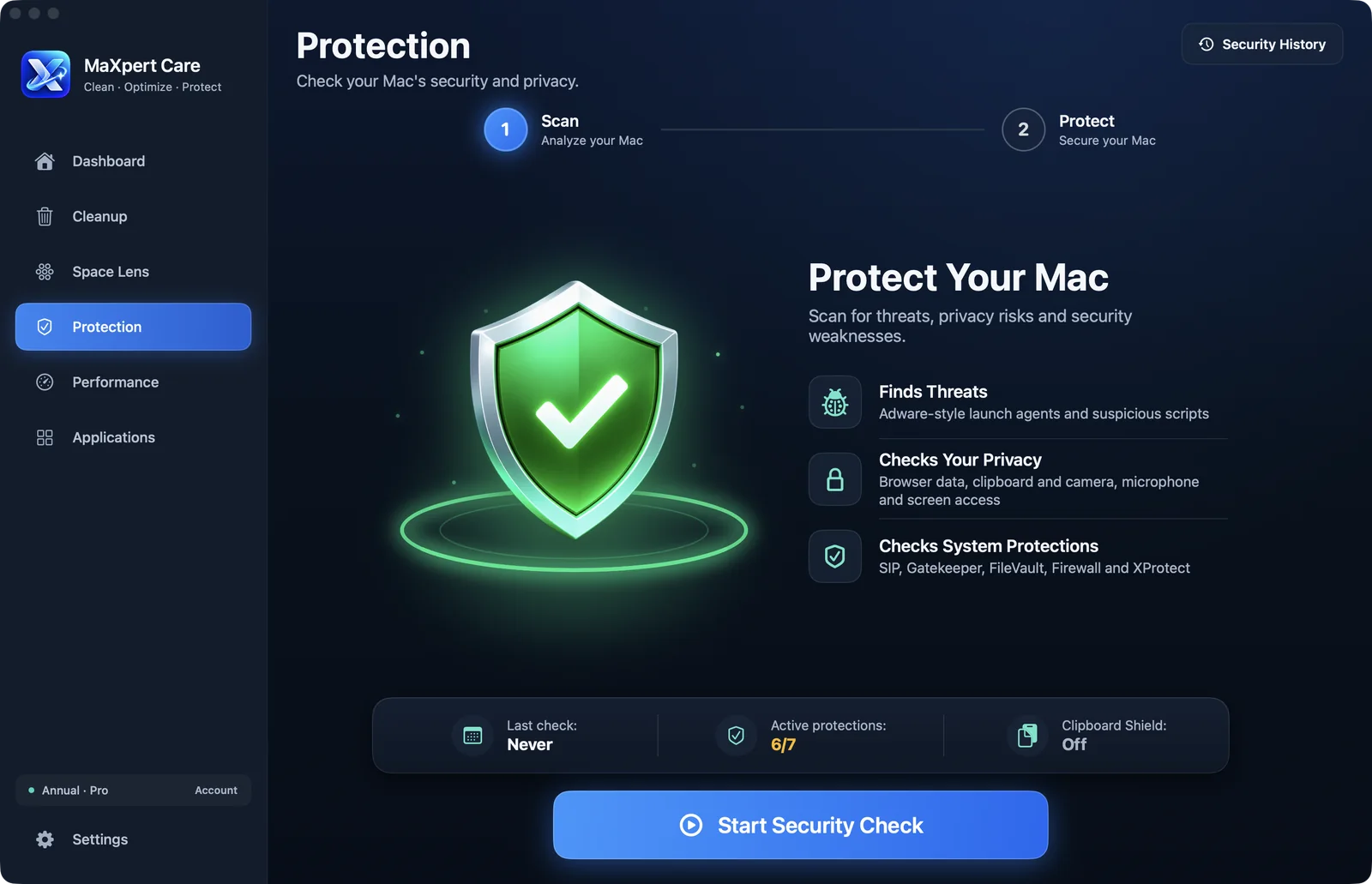
MaXpert Care’s Protection and Cleanup modules measure browser caches across Safari, Chrome, Firefox and Edge in one scan — leaving your cookies, bookmarks and passwords completely untouched.
Frequently Asked Questions
Will clearing browser cache in MaXpert Care sign me out of Gmail or GitHub?
No. MaXpert Care targets temporary browser cache files rather than authentication cookies or Keychain passwords, so your logins and bookmarks remain intact.
More macOS Guides
All guidesHow to Choose Safe, Affordable Mac Cleaner Software in 2026 (Without Overpaying)
Searching for “Mac cleaner” on Google surfaces dozens of utilities charging steep annual subscriptions or using alarming pop-ups. Here is how to evaluate Mac cleaning software like a macOS engineer — and keep your Mac fast for a fraction of legacy prices.
How to Safely Clear “System Data” on Mac (macOS Sonoma & Sequoia)
When System Settings › General › Storage shows tens of gigabytes locked inside “System Data”, macOS gives you no Clean button. Here is what actually lives inside that bar, which folders are safe to remove, and how to reclaim disk space safely.
How to Completely Uninstall Apps on Mac (Including Hidden Leftovers)
Dragging an icon from Applications to the Trash only removes the `.app` bundle itself. Most macOS apps scatter preferences, caches, containers and background launch agents across five different Library folders.