
How to Safely Clear “System Data” on Mac (macOS Sonoma & Sequoia)
When System Settings › General › Storage shows tens of gigabytes locked inside “System Data”, macOS gives you no Clean button. Here is what actually lives inside that bar, which folders are safe to remove, and how to reclaim disk space safely.
1. Why “System Data” Grows So Large on macOS
Unlike the macOS category (which is the signed, read-only operating system volume), System Data is Apple’s catch-all bucket for every file that does not neatly fit into Applications, Photos, Documents or Mail.
On an actively used Apple Silicon MacBook, System Data routinely swells from 15 GB to over 100 GB because third-party browsers, creative suites, package managers and removed apps continuously write cache and support data inside your user Library folder.
- Application & browser caches inside
~/Library/Caches - Diagnostic crash reports and console logs inside
~/Library/Logs - Orphaned data left behind in
~/Library/Application Supportand~/Library/Containersafter dragging apps to the Trash - Developer build artifacts (
Xcode/DerivedData, iOS Simulators, npm, Homebrew and Gradle caches) - Incomplete
.dmg,.pkgand.zipinstallers forgotten in Downloads
2. Safe macOS Locations You Can Inspect Manually
In Finder, press Cmd + Shift + G (Go to Folder) to inspect the user-level cache directories below. Always quit running apps before clearing their caches, and move items to the Trash rather than running rm -rf so you can restore anything if needed.
Temporary app caches. Delete the contents inside specific app cache folders rather than deleting the Caches folder itself.
Old application logs and diagnostic output that are safe to move to the Trash once apps are closed.
Sort by Size to spot old .dmg disk images and .pkg installers that are no longer needed after installation.
macOS protects /System via System Integrity Protection (SIP), while /Library and ~/Library/Application Support contain live app databases, license files and local settings. Deleting unknown folders in Application Support can erase saved app state.
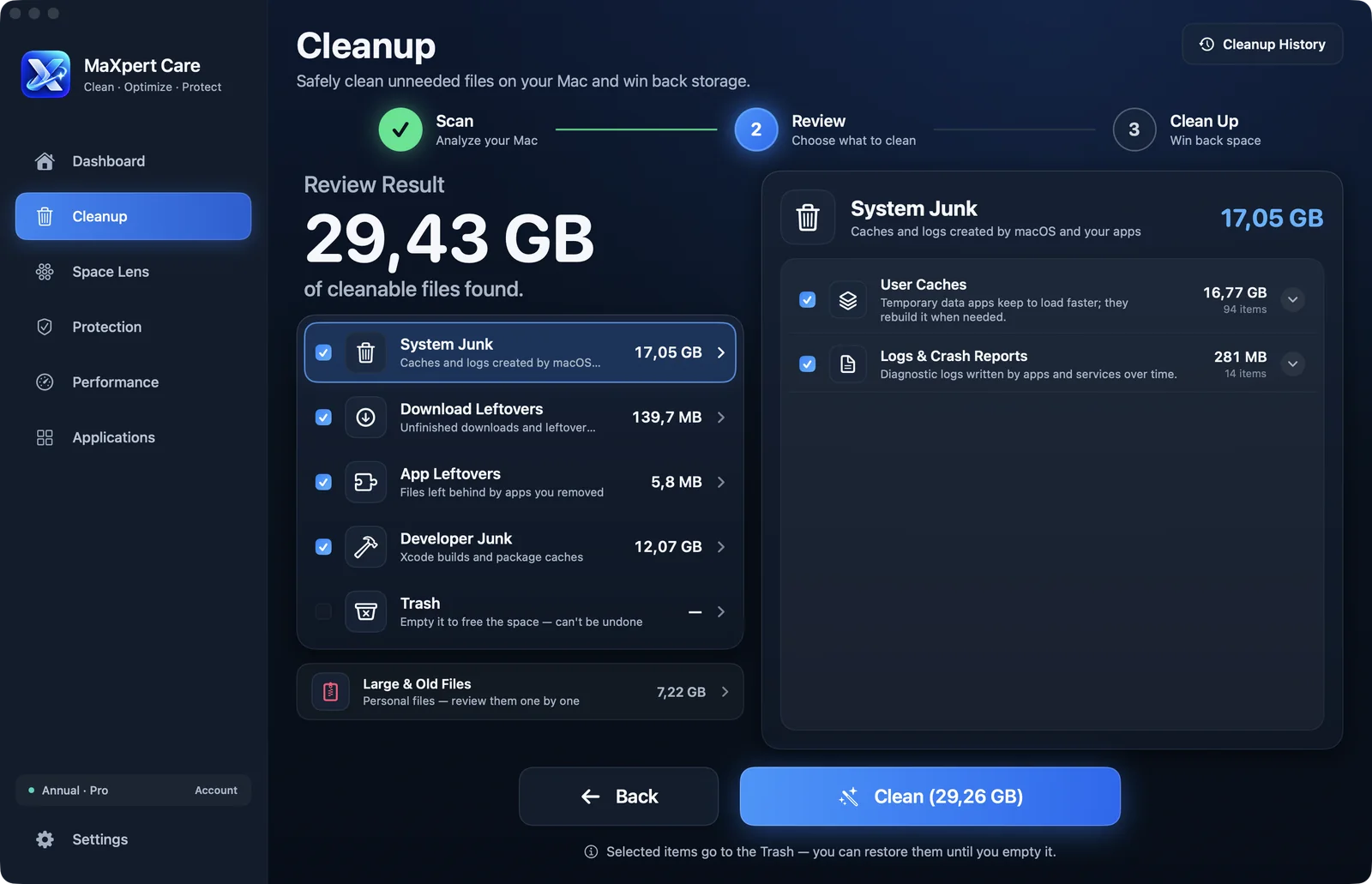
3. Reclaim Space in Three Guided Steps with MaXpert Care
Instead of hunting through dozens of hidden Library subfolders by hand, MaXpert Care scans allowlisted cache, log, leftover and developer locations locally on your Mac — and shows you the exact size of every group before anything moves.
- 1
Run a Free Smart Scan or Cleanup Scan
Open MaXpert Care and run Cleanup. Every scan is strictly read-only and happens 100% on-device.
- 2
Review Every Category & File Size
Inspect System Junk, App Leftovers, Developer Caches and Large & Old Files. Deselect any item you prefer to keep.
- 3
Move Selected Junk to the macOS Trash
MaXpert Care moves cleaned files to the Trash first rather than erasing them silently, keeping every cleanup restorable.
4. What About Time Machine Local Snapshots?
If you use Time Machine, macOS stores hourly APFS local snapshots on your internal SSD until space is needed. Finder counts those snapshots as free space, whereas Storage Settings sometimes attributes them to System Data. macOS automatically purges old APFS snapshots when free space drops, or right after you connect your external backup drive.
Frequently Asked Questions
Will clearing ~/Library/Caches delete my passwords or documents?
No. Caches store temporary downloaded assets and precomputed thumbnails so apps launch faster. Passwords live in macOS Keychain, and user documents live in your home folders or iCloud Drive. Apps simply rebuild fresh caches on next launch.
How much System Data is normal on macOS?
On a clean Mac, 12 GB to 25 GB of System Data is normal for macOS runtime caches, Spotlight indexes and system frameworks. Anything above 35–40 GB usually indicates accumulated app caches, developer build folders or orphaned app leftovers.
Does MaXpert Care permanently erase files immediately?
No. By design, MaXpert Care moves cleaned items to the macOS Trash inside a strict safety allowlist and never touches macOS system directories. Emptying the Trash is always a separate, opt-in step with an extra confirmation.
More macOS Guides
All guidesHow to Choose Safe, Affordable Mac Cleaner Software in 2026 (Without Overpaying)
Searching for “Mac cleaner” on Google surfaces dozens of utilities charging steep annual subscriptions or using alarming pop-ups. Here is how to evaluate Mac cleaning software like a macOS engineer — and keep your Mac fast for a fraction of legacy prices.
How to Completely Uninstall Apps on Mac (Including Hidden Leftovers)
Dragging an icon from Applications to the Trash only removes the `.app` bundle itself. Most macOS apps scatter preferences, caches, containers and background launch agents across five different Library folders.
How to Clear Xcode DerivedData, Simulators & Developer Caches on Mac
Software engineers run out of SSD space faster than anyone else on macOS. Between incremental Xcode builds, Swift Package Manager artifacts, node_modules caches and Gradle wrapper distributions, developer caches silently eat 50 GB+ of fast NVMe storage.