
How to Completely Uninstall Apps on Mac (Including Hidden Leftovers)
Dragging an icon from Applications to the Trash only removes the `.app` bundle itself. Most macOS apps scatter preferences, caches, containers and background launch agents across five different Library folders.
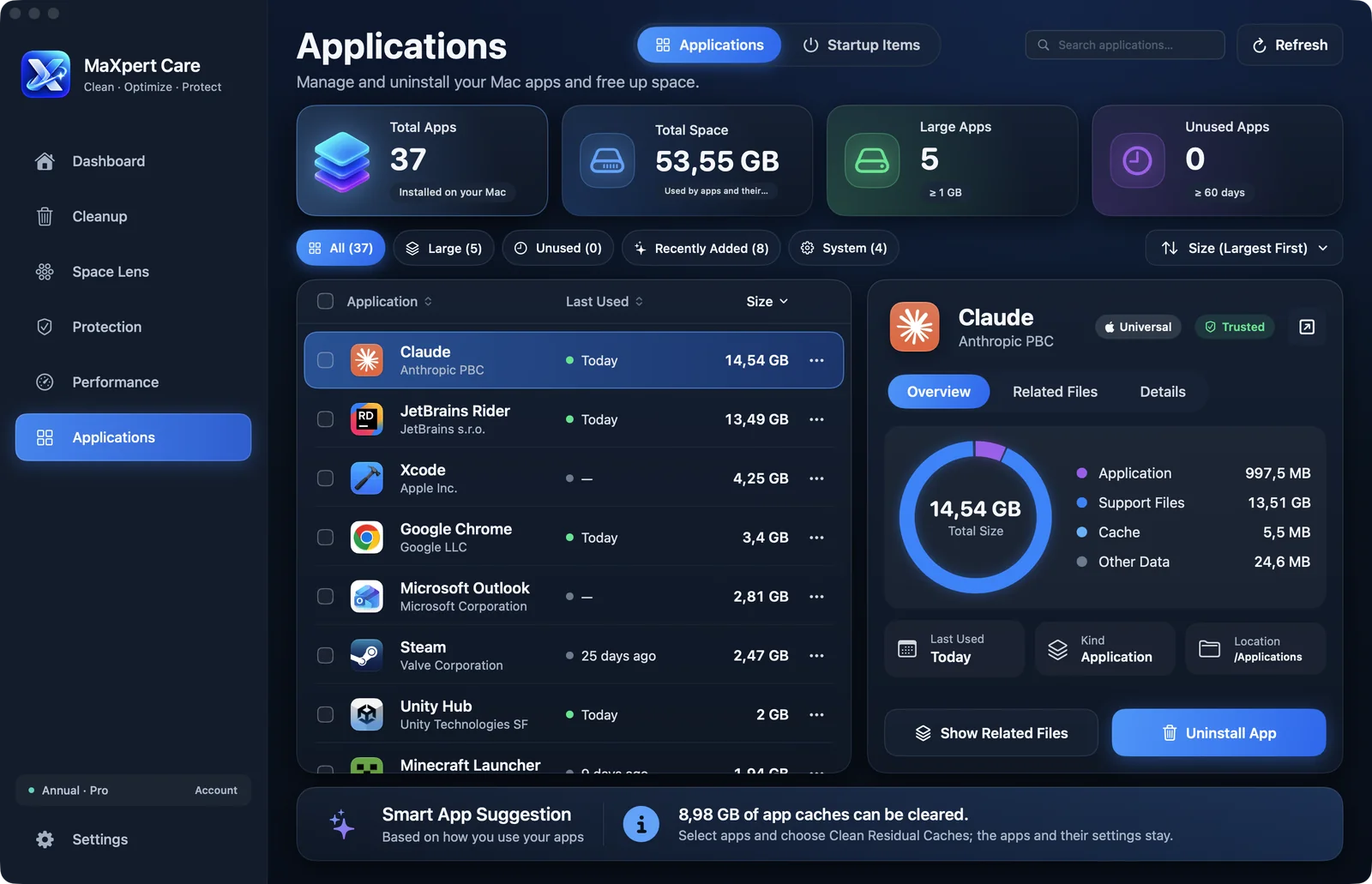
1. Why Dragging an App to the Trash Leaves Gigabytes Behind
On macOS, an application inside /Applications is just a read-only code bundle. As soon as you open the app for the first time, it stores downloaded models, offline databases, sandbox containers, preferences and helper daemons inside your ~/Library directory.
When you drag the .app bundle to the Trash, macOS leaves all of those Library folders intact. Over a year of trying and removing software, orphaned app leftovers easily consume 10 GB to 40 GB — and abandoned LaunchAgents can even keep running in the background at login.
2. The 6 macOS Folders Where Apps Store Related Files
Every macOS app is identified by a reverse-DNS bundle identifier (for example com.vendor.appname). Its associated files are typically spread across these locations:
Offline data, plugins, workspaces and downloaded assets (often the largest folder).
Sandboxed app data directories named after the app’s bundle identifier.
Cached network responses, shaders and temporary media.
.plist settings files matched by bundle ID.
Window positions and session restoration snapshots.
Background helpers and auto-updaters configured to start when you log in.
3. Uninstall Cleanly in One Step with MaXpert Care
MaXpert Care’s Applications module reads each app’s bundle identifier, architecture (Apple Silicon vs. Intel), last-used date and Gatekeeper signature, then automatically maps all matching files across your Library folders.
- 1
Filter by Unused, Large or Recently Added
Spot multi-gigabyte apps you have not opened in months, or Universal/Intel apps taking extra disk space.
- 2
Inspect Every Associated Library File
Click any app to open its detail panel and see the exact paths and sizes in Application Support, Containers, Caches, Logs and Preferences.
- 3
Uninstall Together — Safely to the Trash
Move both the
.appbundle and its associated leftovers to the macOS Trash in one confirmed action. Already deleted an app earlier? Cleanup’s App Leftovers stage finds orphaned folders too.
Switch to the Startup Items tab inside Applications to verify whether old VPNs, cloud sync tools or updaters left behind a LaunchAgent or background daemon.
Frequently Asked Questions
Can MaXpert Care find leftovers from apps I already deleted months ago?
Yes. Even if the .app bundle is already gone from /Applications, the Cleanup module’s App Leftovers scan detects orphaned support and cache folders that no longer belong to any installed application.
Are macOS system apps protected from accidental removal?
Yes. Built-in Apple apps on the signed system volume are separated under the System filter and cannot be removed.
More macOS Guides
All guidesHow to Choose Safe, Affordable Mac Cleaner Software in 2026 (Without Overpaying)
Searching for “Mac cleaner” on Google surfaces dozens of utilities charging steep annual subscriptions or using alarming pop-ups. Here is how to evaluate Mac cleaning software like a macOS engineer — and keep your Mac fast for a fraction of legacy prices.
How to Safely Clear “System Data” on Mac (macOS Sonoma & Sequoia)
When System Settings › General › Storage shows tens of gigabytes locked inside “System Data”, macOS gives you no Clean button. Here is what actually lives inside that bar, which folders are safe to remove, and how to reclaim disk space safely.
How to Clear Xcode DerivedData, Simulators & Developer Caches on Mac
Software engineers run out of SSD space faster than anyone else on macOS. Between incremental Xcode builds, Swift Package Manager artifacts, node_modules caches and Gradle wrapper distributions, developer caches silently eat 50 GB+ of fast NVMe storage.