
How to Clear “Purgeable” Space & Local Time Machine Snapshots on Mac
Few macOS mysteries frustrate users more than seeing “80 GB Available (65 GB Purgeable)” in Disk Utility while Xcode or an installer refuses to run due to “not enough disk space”.
1. What Actually Creates “Purgeable” Storage on APFS
- Local Time Machine Snapshots (
com.apple.TimeMachine.localsnapshots): Hourly APFS snapshots stored locally when your external backup drive is unplugged. - iCloud Drive Optimize Mac Storage: Local cached copies of iCloud files that macOS evicts only when storage pressure rises.
- macOS On-Demand Assets & Caches: Fonts, Siri voices, App Store caches and watched Apple TV downloads.
2. How to Safely Release Local Snapshots & Real Disk Hogs
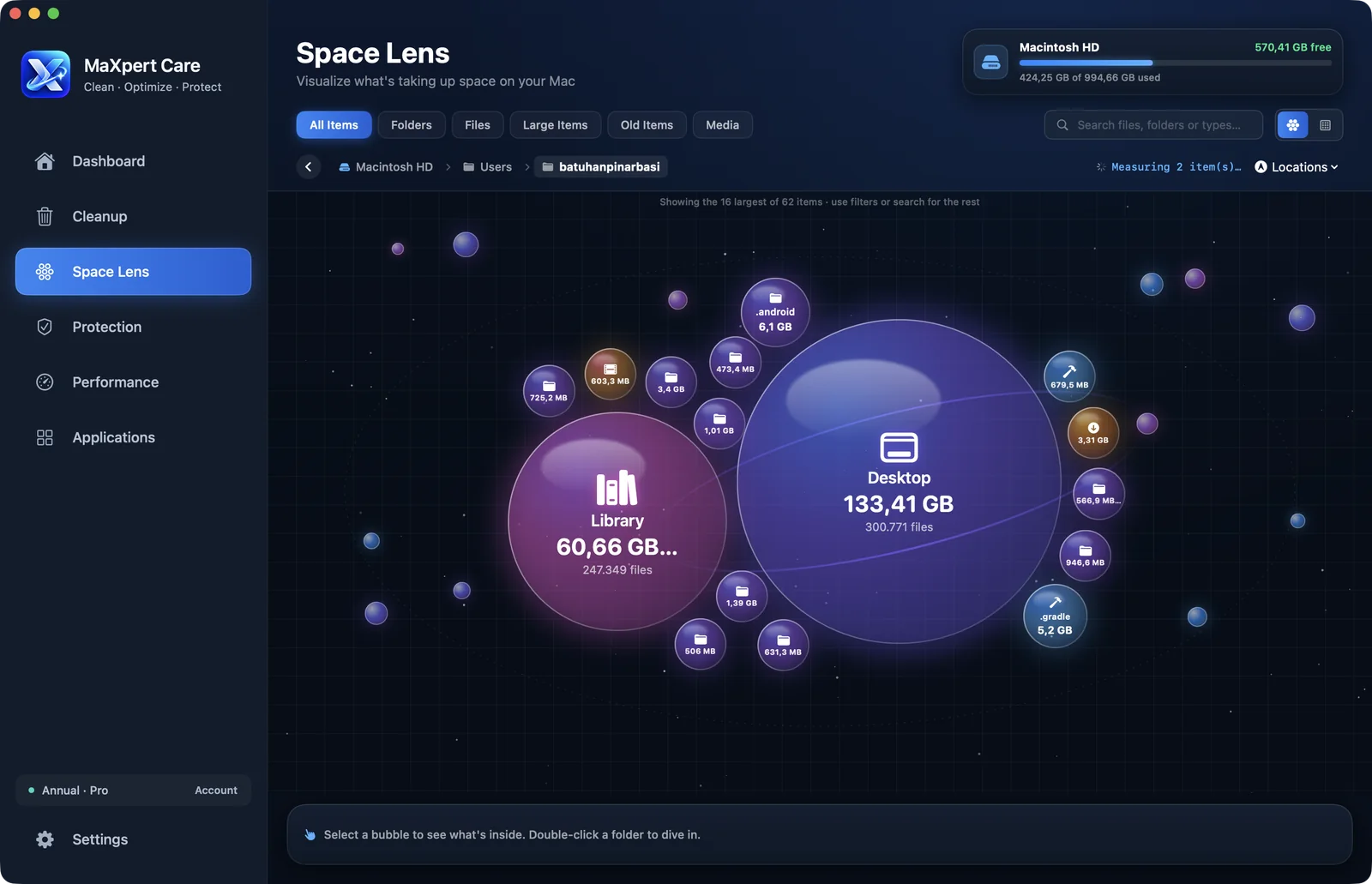
Connecting your Time Machine backup drive lets macOS flush pending local snapshots automatically, or advanced users can inspect snapshots with tmutil listlocalsnapshots /. Pair this with a free Space Lens scan in MaXpert Care to clear real non-purgeable caches that prevent APFS snapshots from shrinking.
Frequently Asked Questions
Why do installers fail even when Finder reports plenty of “Available” space?
Finder counts APFS Purgeable blocks as “Available”, whereas many third-party installers and virtual machines check strict unallocated APFS free blocks.
More macOS Guides
All guidesHow to Choose Safe, Affordable Mac Cleaner Software in 2026 (Without Overpaying)
Searching for “Mac cleaner” on Google surfaces dozens of utilities charging steep annual subscriptions or using alarming pop-ups. Here is how to evaluate Mac cleaning software like a macOS engineer — and keep your Mac fast for a fraction of legacy prices.
How to Safely Clear “System Data” on Mac (macOS Sonoma & Sequoia)
When System Settings › General › Storage shows tens of gigabytes locked inside “System Data”, macOS gives you no Clean button. Here is what actually lives inside that bar, which folders are safe to remove, and how to reclaim disk space safely.
How to Completely Uninstall Apps on Mac (Including Hidden Leftovers)
Dragging an icon from Applications to the Trash only removes the `.app` bundle itself. Most macOS apps scatter preferences, caches, containers and background launch agents across five different Library folders.