
How to Visualize Mac Disk Usage & Find Hidden Space Hogs Fast
macOS Storage Settings groups files by broad categories, hiding giant folders tucked inside hidden dot-directories (`.cache`, `.docker`, `.local`) or deep project trees. Visual disk mapping lets you spot the culprit in seconds.
1. Why Finder and Storage Settings Hide the Full Picture
By default, Finder hides dotfiles (folders starting with .) as well as ~/Library, and does not calculate subfolder sizes unless you enable “Calculate all sizes” folder by folder. Meanwhile, a single forgotten screen recording, local LLM weight file (~/.ollama or ~/.cache/huggingface), or Docker image can quietly occupy 40 GB.
2. Drill Through Your Drive Live with Space Lens
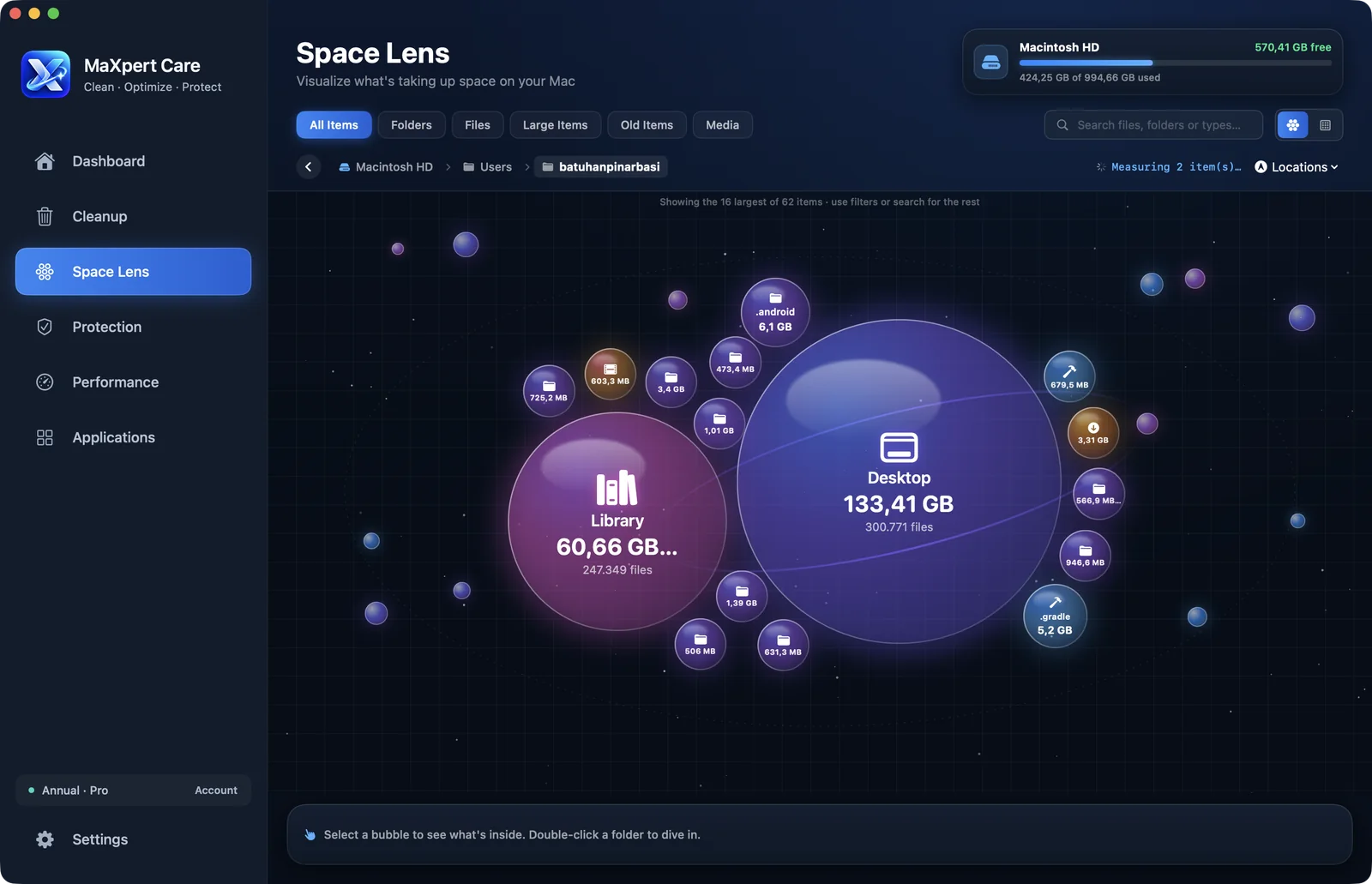
MaXpert Care’s Space Lens scans any folder or your entire home directory for free, rendering real on-disk byte usage as interactive proportional bubbles or a precision treemap.
- Sizes grow live in real time while directories are indexed in parallel
- Hidden folders (
.cache,~/Library, package stores) are measured and surfaced clearly alongside regular folders - Click any bubble or treemap block to drill deeper, inspect the Largest Items sidebar, and queue unwanted home-folder items for the Trash
You can download MaXpert Care and use Space Lens to map and explore your Mac’s disk usage as much as you want at zero cost, with no license key required.
Frequently Asked Questions
Is Space Lens free to use in MaXpert Care?
Yes! Downloading MaXpert Care and scanning/exploring your drive with Space Lens, Smart Scan, Performance and Protection is completely free. Moving queued items to the Trash from inside the app is part of MaXpert Care Pro.
Are my file names or folder paths uploaded anywhere during a scan?
Never. Every directory scan and size calculation runs locally on your Mac. Zero file names, paths or contents ever leave your device.
More macOS Guides
All guidesHow to Choose Safe, Affordable Mac Cleaner Software in 2026 (Without Overpaying)
Searching for “Mac cleaner” on Google surfaces dozens of utilities charging steep annual subscriptions or using alarming pop-ups. Here is how to evaluate Mac cleaning software like a macOS engineer — and keep your Mac fast for a fraction of legacy prices.
How to Safely Clear “System Data” on Mac (macOS Sonoma & Sequoia)
When System Settings › General › Storage shows tens of gigabytes locked inside “System Data”, macOS gives you no Clean button. Here is what actually lives inside that bar, which folders are safe to remove, and how to reclaim disk space safely.
How to Completely Uninstall Apps on Mac (Including Hidden Leftovers)
Dragging an icon from Applications to the Trash only removes the `.app` bundle itself. Most macOS apps scatter preferences, caches, containers and background launch agents across five different Library folders.