
How to Manage Startup Items, LaunchAgents & Background Daemons on Mac
When twenty updaters, menu bar helpers, VPN daemons and audio drivers launch simultaneously every time you log in, boot time slows down and gigabytes of RAM disappear before you open a single window.
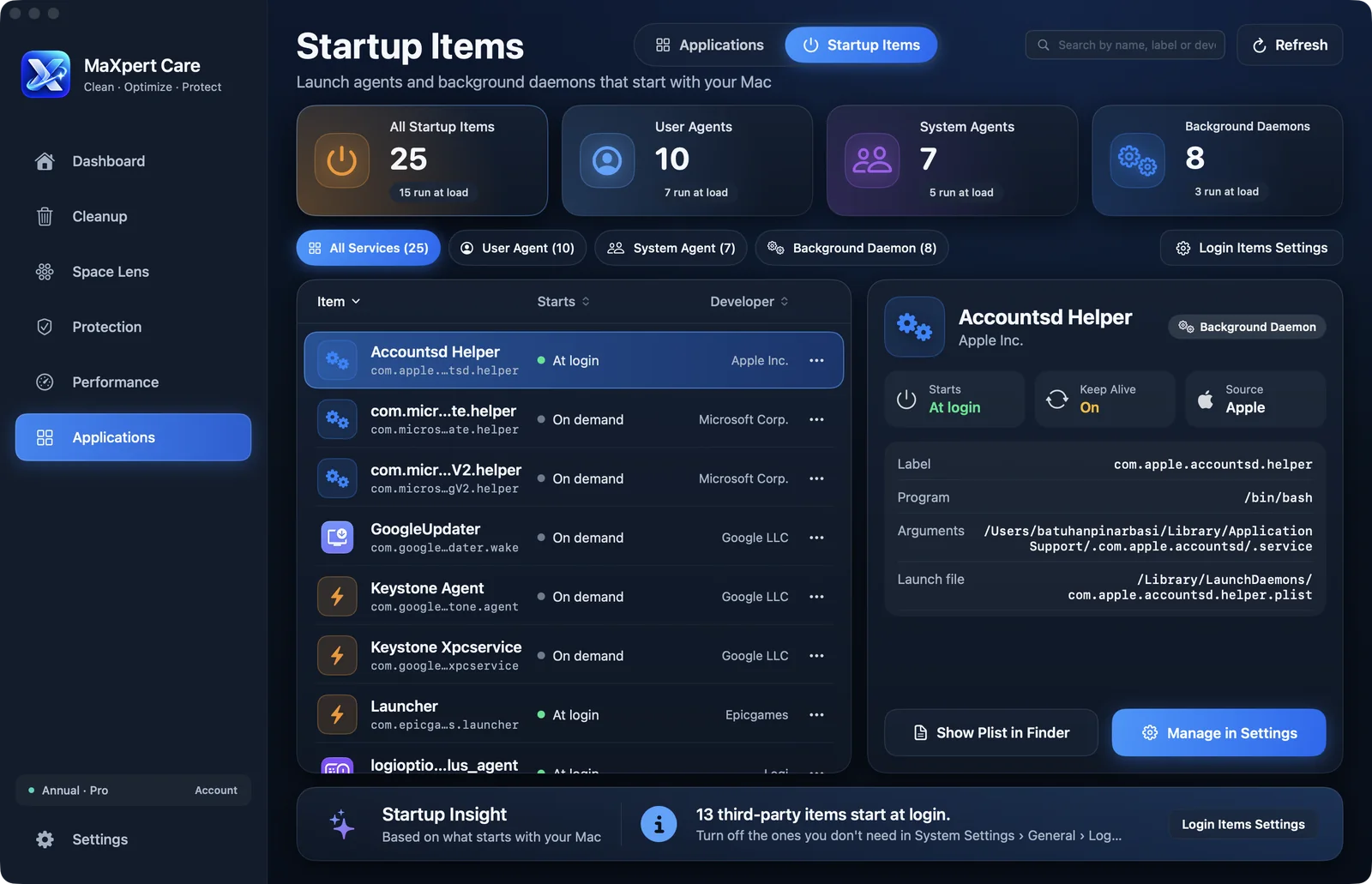
1. Login Items vs. LaunchAgents vs. LaunchDaemons Explained
macOS has three distinct mechanisms for starting software automatically, which is why apps keep launching even when “Open at Login” appears off in the Dock:
User-specific .plist agents that start when your user account logs in (updaters, sync helpers, keyboard utilities).
System-wide agents that run in the user session for every user account on the Mac.
Privileged root background services that start at boot before anyone logs in (VPN tunnels, virtualization helpers, enterprise tools).
2. Inspect Every `.plist` Owner Safely in MaXpert Care
Cryptic filenames like com.vendor.helper.agent.plist make it hard to tell what belongs to which app. Under Applications › Startup Items, MaXpert Care parses every launch .plist, resolves its owning application and developer signature, shows when it runs, and gives you a one-click shortcut to System Settings › General › Login Items & Extensions so you can toggle items through macOS’s official controls.
Frequently Asked Questions
Why does MaXpert Care link to macOS Login Items instead of forcefully killing system daemons?
Since macOS Ventura and Sonoma, Apple tracks background item permissions in a system database (sfltool / SMAppService). Toggling items in System Settings › Login Items & Extensions ensures apps do not simply re-register their plist on next launch.
More macOS Guides
All guidesHow to Choose Safe, Affordable Mac Cleaner Software in 2026 (Without Overpaying)
Searching for “Mac cleaner” on Google surfaces dozens of utilities charging steep annual subscriptions or using alarming pop-ups. Here is how to evaluate Mac cleaning software like a macOS engineer — and keep your Mac fast for a fraction of legacy prices.
How to Safely Clear “System Data” on Mac (macOS Sonoma & Sequoia)
When System Settings › General › Storage shows tens of gigabytes locked inside “System Data”, macOS gives you no Clean button. Here is what actually lives inside that bar, which folders are safe to remove, and how to reclaim disk space safely.
How to Completely Uninstall Apps on Mac (Including Hidden Leftovers)
Dragging an icon from Applications to the Trash only removes the `.app` bundle itself. Most macOS apps scatter preferences, caches, containers and background launch agents across five different Library folders.